Green Leaf Frame Border Patterns: A Designer’s Guide to Getting the Most from These Natural Motifs
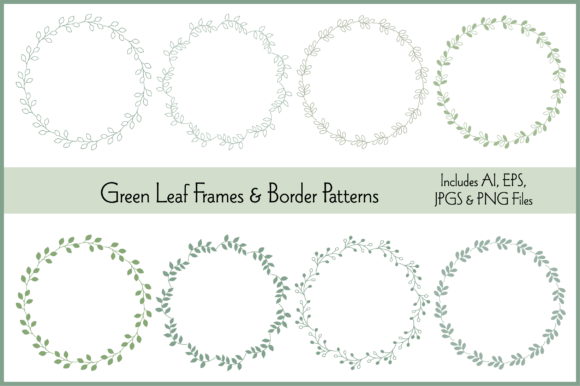
When you first open a set of Green Leaf Frame Border Patterns by Melissa Held Designs, it is easy to assume that the hardest part is already done. You see sixteen ready-to-use PNGs with transparent backgrounds, sixteen JPGs, and two editable EPS and AI files. The frames are roughly 3.5 inches in diameter, the borders are twelve inches wide, and everything comes in shades of green that feel fresh and approachable. The temptation is to drop a PNG onto a greeting card, resize it quickly, and call the project finished. That approach can work, but it also leaves most of the value on the table. These graphics were built to offer more flexibility than a simple drag-and-drop workflow, and treating them as static stickers rather than editable assets is one of the most common mistakes people make.
The collection includes eight circle leaf frames and eight leaf border patterns, but the real power lies in the separate layer of editable brushes that is compatible with Adobe Illustrator version 17 or newer. Those brushes let you create frames and borders of any size and length, not just the dimensions in the preview images. If you skip that layer entirely, you are effectively paying for a feature you never use. The difference between using a pre-sized PNG and generating a custom border from the brush presets can be the difference between a design that looks borrowed and one that feels made for your specific project.
Treating the Files as One-Use Stamps Instead of Building Blocks
A surprising number of people open the EPS or AI file, see the arranged frames and borders, and immediately export them as flat images. They never explore the brush layer. The result is a set of graphics that cannot stretch beyond their original dimensions without losing resolution. A three-and-a-half-inch circle frame works beautifully on a gift tag or a small sticker, but when you scale it up for a poster or a website header, the edges can soften, and the detail in the leaves can start to look muddy. That is not a flaw in the design. It is a mismatch between the format you chose and the size you need.
The better approach is to open the AI file in a compatible version of Illustrator and locate the layer that contains the editable brushes. Those brushes are not just decorative extras—they are the mechanism that keeps the leaf motifs crisp at any scale. Instead of stretching a PNG, you draw a path of any length or curve and apply the brush. The leaves follow the path, and the result remains vector-sharp. For circular frames, you can draw a perfect circle and apply the brush to that path, which gives you a frame that matches your exact dimensions without interpolation artifacts. The same logic applies to borders. Rather than tiling a twelve-inch-wide JPG across a banner, you draw a path the length you need and let the brush repeat the leaf pattern seamlessly.
Ignoring the Separation Between Editable and Raster Files
The product includes two EPS files, two AI files, sixteen PNGs, and sixteen JPGs. Each format serves a different purpose, and confusing them leads to frustration. The PNGs and JPGs are excellent for quick mockups, social media graphics, and projects where you do not need to edit the individual leaves. They are also useful for testing a layout before committing to the vector workflow. But relying on them for final print work at large sizes, or for designs that require exact color matching, can compromise quality.
One practical rule is to use the PNGs and JPGs for any project that will stay at or near the original dimensions. For anything larger, or for any project where you need to change the color of the leaves, adjust the spacing, or combine frames with other vector elements, go straight to the AI file. The EPS files are a good fallback for older software versions, but the AI files with the brush layer are where the flexibility lives. If you are working in a program that does not support Illustrator brushes, you may need to treat the PNGs as your primary resource and accept the size limitations. That is a legitimate constraint, but it should be a conscious choice rather than an accidental limitation.
Overlooking Color Variation and Green Harmony
All the patterns come in shades of green, but that does not mean every green in the set works equally well for every project. A deep forest green that looks elegant on a wedding invitation can feel too heavy for a children’s birthday card. A bright lime green that pops on a sticker label can clash with a pastel background in a scrapbook layout. The mistake is assuming that because the greens are coordinated within the set, they are universally interchangeable. In reality, the palette includes a range of values and undertones, and selecting the wrong shade for your context can make the design feel disconnected.
Before you commit to a specific frame or border, place it next to the other colors in your project. If you are designing a logo, test each green option against your brand colors. A set of leaf borders that works beautifully on a white background may look completely different on a cream or kraft paper background. The PNG files on transparent backgrounds make this testing easy—you can overlay them on different mockups in seconds. Use those mockups, including the ones courtesy of Graphicburger, to evaluate contrast and harmony before you finalize your choice.
If you are working in Illustrator and have access to the editable files, you can also adjust the green values directly. That is one of the strongest arguments for using the AI files instead of the raster versions. You are not locked into the original palette. You can shift the hue slightly warmer or cooler, or adjust the saturation to match your project’s mood. That kind of flexibility is invaluable for branding work, where exact color reproduction matters.
Misjudging the Scale for Different Applications
The frames are approximately three and a half inches in diameter, and the borders are twelve inches wide. Those measurements matter more than most people realize. If you use a frame as a badge on a business card, it will occupy a significant portion of the card’s surface. That can be a deliberate design choice, but it can also overwhelm other elements like your name or tagline. On the other hand, the same frame used as a decorative element on a large greeting card might feel small and lost in the composition.
The smart move is to plan your layout around the actual dimensions of the graphics before you start designing. Physically cut out a circle of paper that matches three and a half inches and hold it against your card stock. See how much space it takes up. If you need a smaller frame, you can scale down the vector version without quality loss. If you need a larger one, use the brush layer to draw a circle at the size you want rather than enlarging the PNG. The same logic applies to borders. A twelve-inch border strip might be perfect for the width of an A4 card, but if your project is a square scrapbook page or a wide website banner, you will need to extend that pattern. The brush layer makes extension trivial. Doing it manually by copying and pasting raster tiles is tedious and often produces visible seams.
Neglecting the Mockup Phase
The product listing mentions mockups courtesy of Graphicburger, and these are not just decorative screenshots. They are practical tools for evaluating how a frame or border will look in a realistic setting. Many designers skip this step and go straight to printing or publishing, only to notice later that the scale was off, the color read differently on screen versus paper, or the border did not align well with the other design elements.
Aim to spend at least a few minutes placing your chosen frame or border into a mockup that matches your intended output. If you are designing a gift tag, put the frame on a tag mockup. If you are creating a sticker, use a sheet mockup. This process reveals problems that are invisible when you are zoomed in on a single element. It also helps you decide between different leaf patterns without having to commit to a final version. Because the set includes eight different circle frames and eight different border styles, you have enough variety to compare options side by side. The mockup phase is where you narrow down that variety to the one that works best for your specific project.
Using the Patterns for Every Purpose Without Adaptation
One of the strengths of this collection is its versatility. You can use these graphics for logo design, greeting cards, home decor, scrapbook embellishments, gift tags, stickers, labels, and any other digital or paper project. But that versatility can also be a trap. A leaf border that looks elegant on a wedding invitation may feel out of place on a tech startup logo. A delicate circle frame that suits a botanical blog might not have enough visual weight for a product label on a shelf.
Adaptation is not just about changing colors or sizes. It is also about choosing the right level of detail for the medium. For small prints like stickers or labels, high-detail leaf patterns can become visually noisy. For large prints like posters or wall art, patterns that look too sparse can feel unfinished. The editable brush layer gives you control over density and spacing, which means you can adjust the pattern to match the scale of your output. Do not settle for a preset that almost works. Adjust the brush settings until the pattern fits the function.
Checking File Compatibility Before You Buy
One oversight that causes the most frustration is not verifying software compatibility ahead of time. The editable brushes are compatible with AI version 17 or newer. If you are using an older version of Illustrator, a different vector application, or a raster-only program like Photoshop, the brush layer will not open in an editable form. You will be limited to the PNGs and JPGs, which is still a useful set of resources, but you will miss the main advantage of the collection.
Similarly, if you work primarily on an iPad or in a mobile design app, the AI and EPS files may not open at all. Check your software’s ability to handle Adobe Illustrator files before you make the purchase. If you find that you cannot use the brush layer, adjust your expectations accordingly. The PNGs and JPGs are high-quality and perfectly usable on their own. They just are not infinitely scalable. Knowing this ahead of time prevents disappointment and helps you plan your workflow around the tools you actually have.
Making the Most of What You Receive
When you download the collection, you receive two editable EPS files, two editable AI files, sixteen PNGs on transparent backgrounds, and sixteen JPGs. That is a substantial amount of material for a single purchase, and the best results come from using each format where it shines. Use the AI files with the brush layer for custom work. Use the EPS files as a backup for cross-compatibility. Use the PNGs for quick mockups and social media content. Use the JPGs for previews and low-stakes projects where file size matters more than transparency.
The mockups from Graphicburger are a bonus that many people ignore. They are not strictly necessary, but they save you time when you need to present a design to a client or test how a pattern looks on a physical product. Keep them in your project folder and pull them out whenever you are evaluating a new layout. One quick mockup test can save you from printing a batch of labels with a frame that looked perfect on screen but feels cramped in real life.
Building a Long-Term Asset Library
Finally, think of these leaf frames and borders as components you can reuse across many projects. The mistake is to download them, use them once, and archive them permanently. Because the files are editable, you can create variations of the same pattern for different clients or personal projects. Store the AI files in a well-organized folder, and label them clearly so you can find the brush presets later. Over time, you will build a library of natural motifs that you can pull into any design without starting from zero.
The real value of the Green Leaf Frame Border Patterns is not just the sixteen ready-to-use graphics. It is the ability to generate exactly the frame or border you need, at the size you need, in the color you need, and to do it quickly enough that you can spend your creative energy on the rest of the design. Avoiding the common mistakes of treating everything as a static image, ignoring the brush layer, and skipping the mockup phase will turn a good set of graphics into a reliable tool you reach for again and again.